An operator should walk up to a screen, see what to do next, do it, and record what happened. Nothing else should get in the way. Here is the whole path through Eryxon Flow from the floor.
Sign in
A cell usually runs one shared screen, not one login per person. The terminal handles a shared account and lets operators switch with a badge and PIN, so a single tablet serves a real work center. On a phone the app opens to the same badge-and-PIN screen, and an admin checking in for oversight reaches the floor view without badging in as an operator.
Find the next job
Two views show the same work. The Work Queue is a kanban board, one column per cell, cards ordered by priority with rush jobs marked. The Terminal is a split screen: the queue on the left, full job detail on the right, built for a fixed workstation screen.
Either way the operator reads the card — job, part, quantity, hours remaining, due date — and picks the one to run. A barcode or QR scan jumps straight to the matching operation, so there is no scrolling to find it.
Open the part
With a job selected, the detail panel carries everything needed at the machine: the drawing, the 3D model, dimensions and tolerances pulled from the model, the CNC program name, and the routing that shows where the part came from and where it goes next. The program name can be scanned from the panel, so the right file loads without retyping.
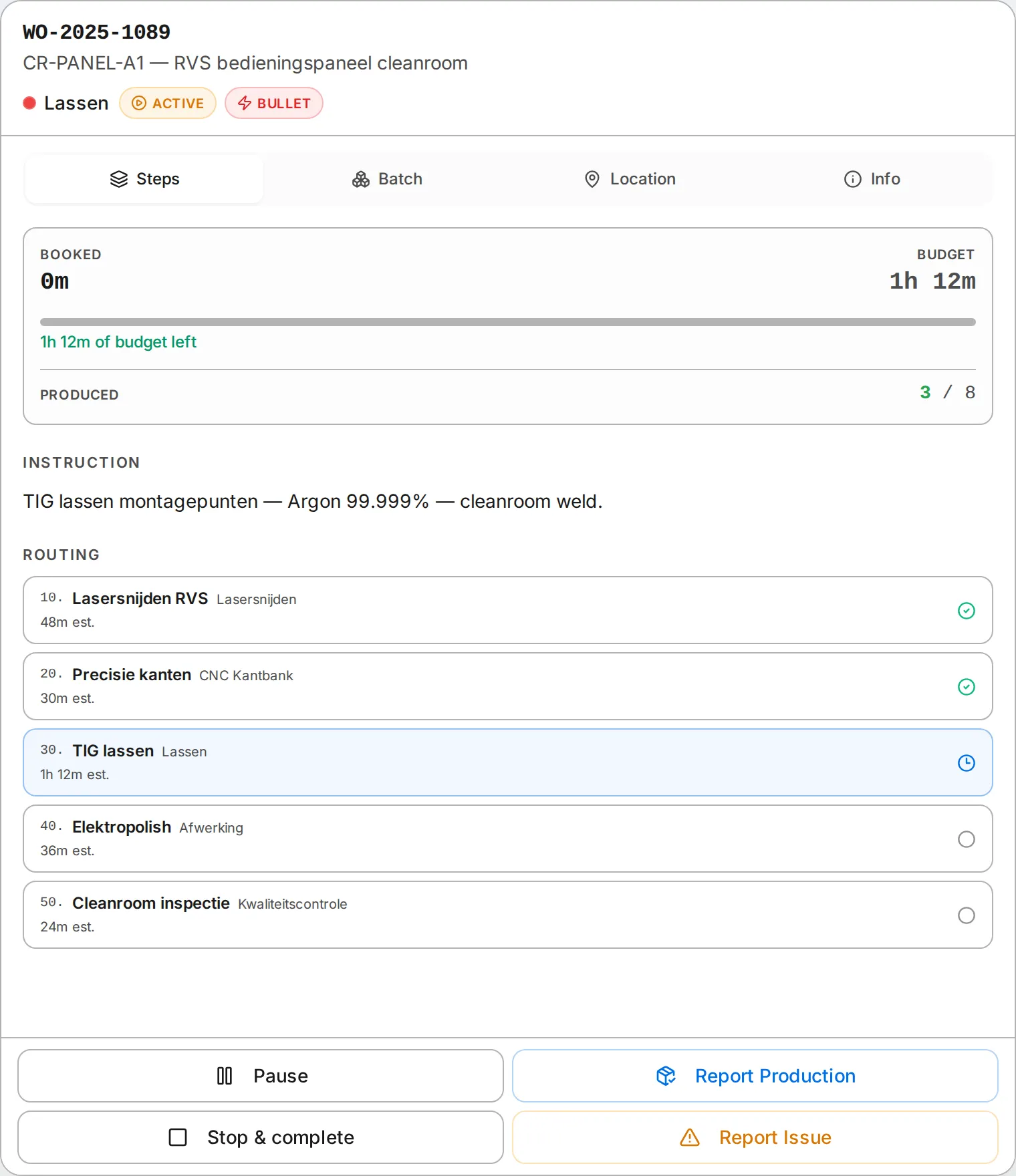 Drawing, 3D model, and routing open from the active job — the operator never leaves the workstation (demo data shown).
Clock on
The operator picks a mode — setup or production — and starts. That opens a time entry against the operation and the operator who is signed in. Pause stops the clock; complete closes the operation and clears it from the queue. Batches that run as one nest start and stop together under a single timer.
Because the clock is tied to the signed-in operator, hours land against the person who did the work, not the shared screen.
Report what happened
When something is wrong, the operator raises an issue from the same screen. The report carries the cell context — where the part was and where it was headed — so a planner can act without reconstructing it later.
If the floor uses drop-off location tracking, completing an operation asks where the part was placed and records it, so the next cell can find it. Floors that leave the feature off never see it.
Look back
My Activity shows the operator their own time entries and completed work. My Issues shows the reports they raised. Both stay scoped to the person, so the view is theirs, not the whole floor’s.
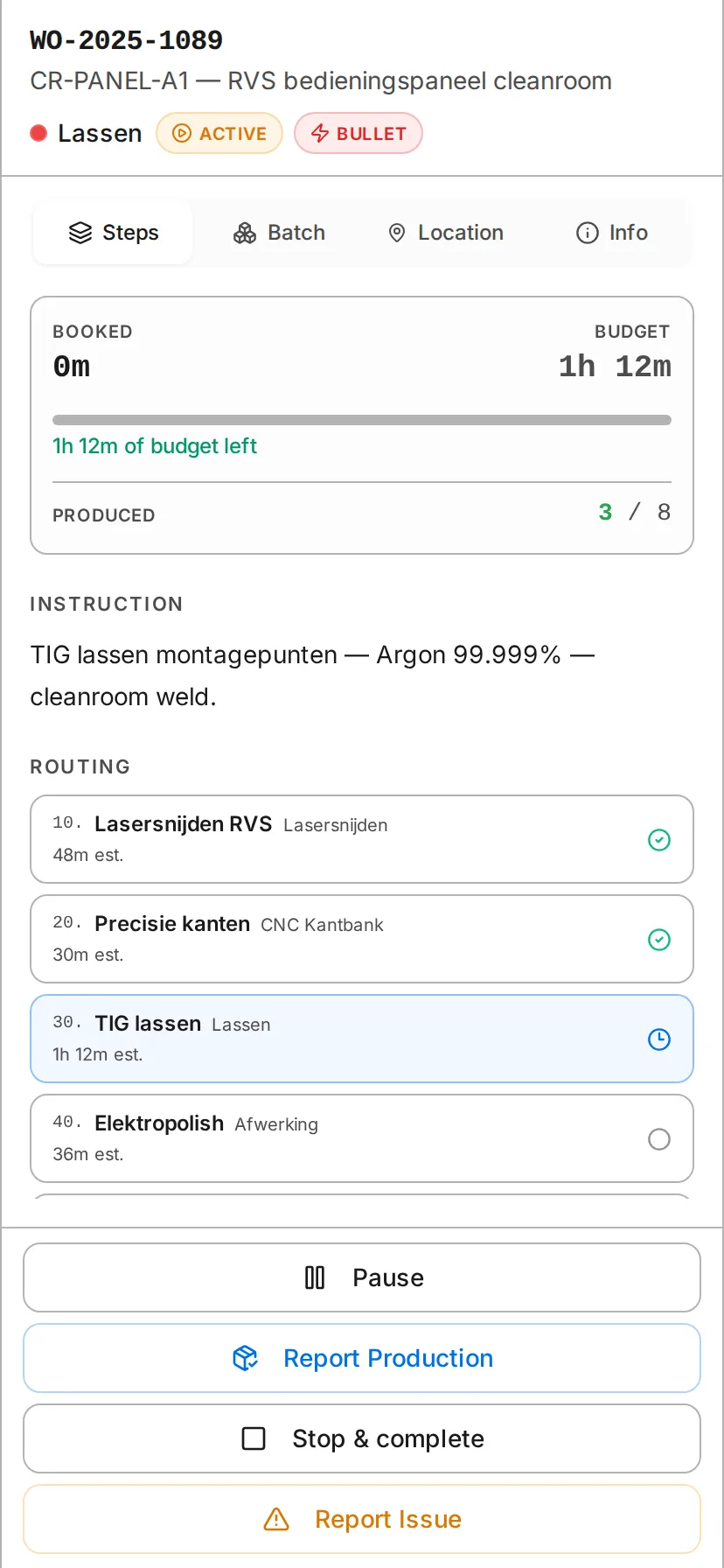 The same panel on a phone, for one-handed use away from the workstation (demo data shown).
That is the loop: sign in, find the job, open the part, clock on, report, repeat. It runs on a tablet at the cell or a phone in a pocket, self-hosted or on the hosted version.