3D STEP Viewer
What it does
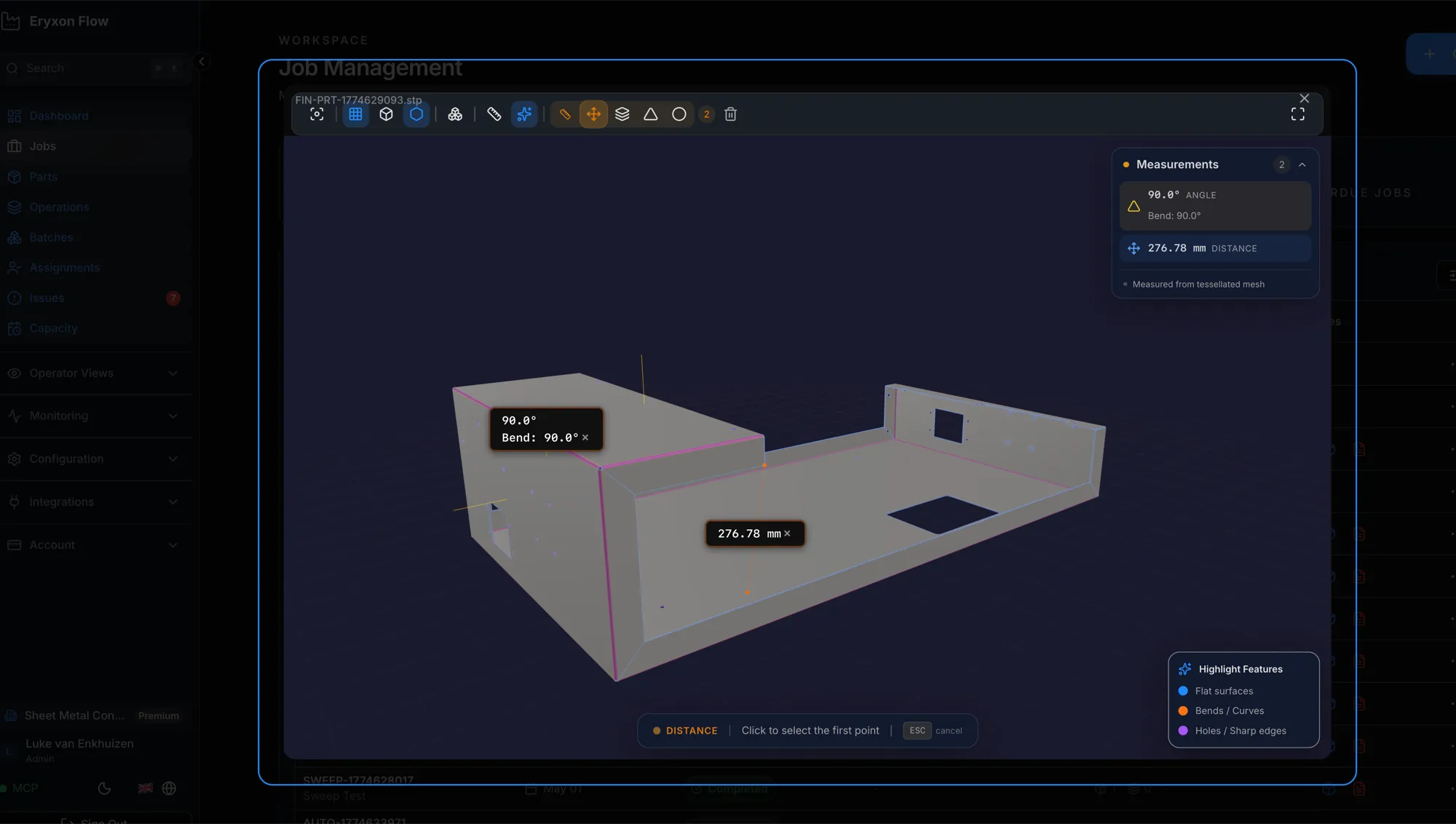
Section titled “What it does”The 3D STEP viewer lets you view CAD models directly in the browser. Upload a STEP file to a part, click “View 3D”, and inspect the model from every angle — no desktop CAD software needed.
How it works
Section titled “How it works”The viewer parses and renders the STEP file in the operator’s browser, so a self-hosted install needs no extra CAD infrastructure: full geometry plus measurements, with PMI overlays when the model carries them.
Features
Section titled “Features”- View
.stepand.stpfiles in the browser - Orbit, zoom, and pan with mouse or touch
- Exploded view to separate assembly components
- Wireframe mode toggle
- Auto-sized grid that adapts to model dimensions
- Fit-to-view to center and frame the model automatically
- Measurement tools: distance, thickness, angle, and radius
- PMI overlay when PMI data has been extracted
- Upload, view, and delete CAD files per part
- Tenant-isolated file storage
Supported file formats
Section titled “Supported file formats”| Format | Extensions | Viewer |
|---|---|---|
| STEP | .step, .stp | 3D interactive viewer with measurements |
.pdf | Built-in PDF viewer for drawings and documents |
How to use it
Section titled “How to use it”Upload a CAD file
Section titled “Upload a CAD file”- Go to Admin Dashboard > Parts
- Click a part to open the detail modal
- Scroll to the 3D CAD Files section
- Click Choose STEP files or drag and drop your files
- Click Upload
View a 3D model
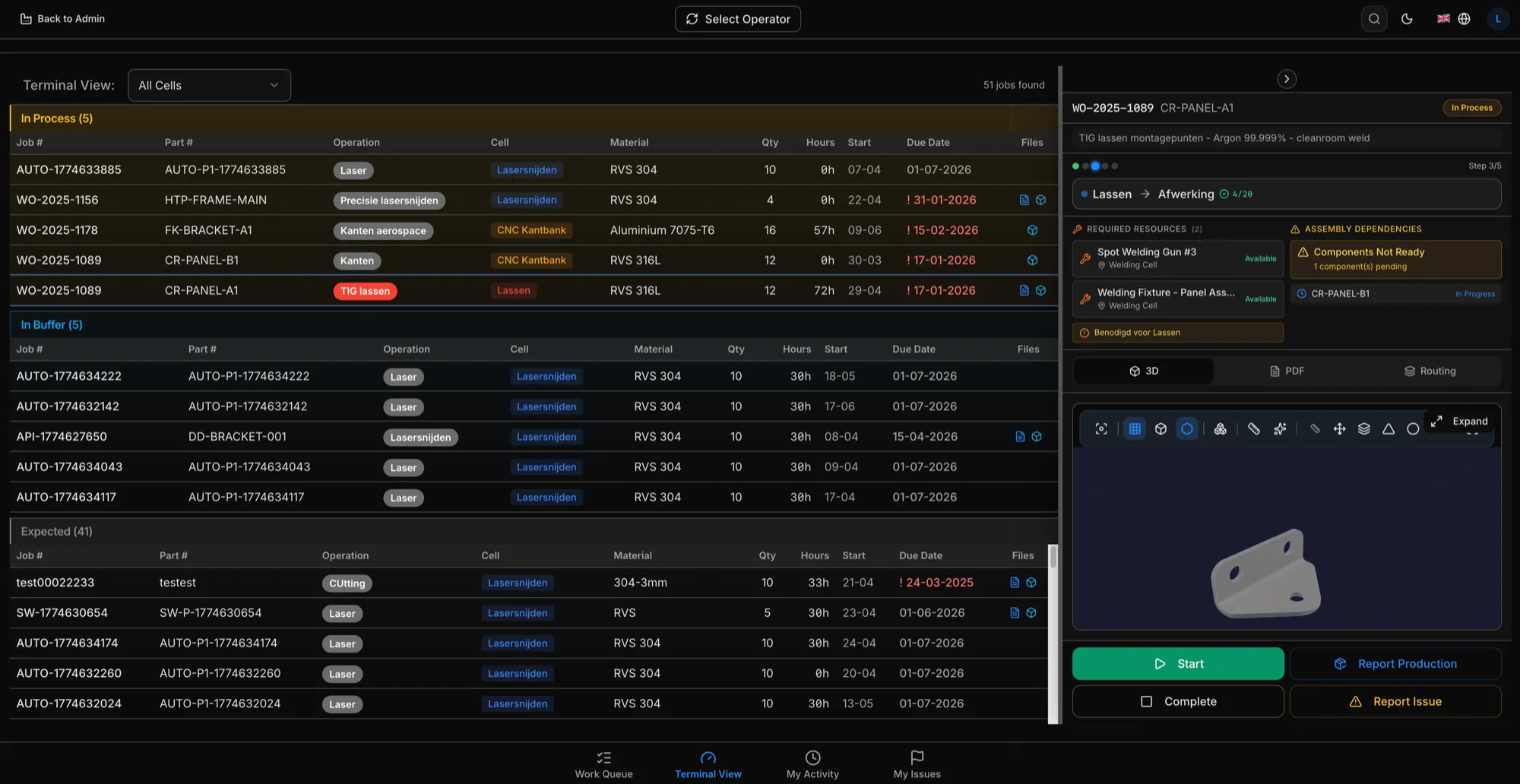
Section titled “View a 3D model”- Click the View 3D button next to any uploaded file
- The viewer opens full-screen
Controls
Section titled “Controls”| Action | Input |
|---|---|
| Rotate | Left-click and drag |
| Zoom | Scroll wheel |
| Pan | Right-click and drag |
| Center model | Click Fit View |
| Wireframe | Toggle in toolbar |
| Exploded view | Toggle in toolbar, adjust slider |
| Grid | Toggle in toolbar |
Measurements
Section titled “Measurements”Select a measurement tool from the toolbar, then click points or faces on the model. Available tools:
- Point distance — click two points to measure the distance between them
- Face distance — click two faces
- Face angle — click two faces to measure the angle
- Radius — click a curved face
Delete a file
Section titled “Delete a file”Click the trash icon next to the file and confirm.
File size recommendations
Section titled “File size recommendations”- Best performance: files under 10 MB
- Maximum upload size: 100 MB
- Browser parsing limit: roughly 50 MB — larger files may slow down or fail to render
- Large assemblies: split into sub-assemblies where possible
Troubleshooting
Section titled “Troubleshooting”Model won’t load
Section titled “Model won’t load”Check the browser console for error messages:
- “Failed to load STEP parser library” — usually a network issue. The parser is loaded from a CDN at runtime. Check your internet connection and any firewall rules.
- “No geometry found in STEP file” — the file may be corrupt or empty. Try re-exporting it from your CAD software.
Model appears off-center
Section titled “Model appears off-center”Click the Fit View button in the toolbar.
Model looks wrong or incomplete
Section titled “Model looks wrong or incomplete”- Verify the file opens correctly in desktop CAD software
- Try re-exporting as STEP AP214
- If the file is very large, try splitting the assembly